
nAxiom install guide, nAxiom version 1.15.6.0 and later
Last updated: 2026-02-04
Table of contents
- Introduction
- Requirements
-
Installation process
- Installing required components
-
Advanced installation
- Configuration using environment variables
- IIS server configuration
- Internal traffic configuration
- Environment type selection
- Installation package selection
- Tenant admin — configuration
- Message broker — configuration
- Schema settings
- Diagnostics
- Traffic restriction settings
- Traffic restriction settings
- Post-installation information
Introduction
nAxiom is a browser-based ASP.NET Core application running on the .NET 8 environment. The application uses Microsoft SQL Server as its data store. The first installation of nAxiom can be completely unattended, provided that the default settings are sufficient. The installer checks for, and if necessary downloads and installs, components required for nAxiom to operate, such as the .NET Core platform, the .NET Hosting Bundle, Microsoft SQL Server software, and Internet Information Services with the required extensions.
An advanced mode is also available, in which the user can individually configure a number of settings. Using advanced mode is also required when the user wants to install additional nAxiom sites on the same machine.
In specific cases, it is also possible to prepare the environment required to run an nAxiom site manually. A description of manual installation and configuration of these components is provided later in this guide.
Running an nAxiom site requires a license generated for the client name specified during installation.
Requirements
Hardware requirements
A workstation or server on which the nAxiom site will be run as an environment for developing and/or testing business applications must meet the following minimum hardware requirements.
- RAM
-
- 8 GB
- Hard disk
-
- system: 100 GB
- database: 100–500 GB
- application: 20 GB
- Number of CPU cores
-
- 4
Such a configuration may also be used as a production environment for approximately 20 users. The specified disk space does not include space required for storing attachments and assumes ongoing space recovery through data archiving.
The nAxiom installer supports x64 processor architecture only. The x86 architecture is no longer supported.
Supported operating systems
The nAxiom platform can be installed on the following operating systems: Windows 10 (build 1607 or later), Windows Server 2016, Windows Server 2019.
In addition, the nAxiom platform is available as a set of Docker images for Linux systems. More information on this topic can be found in the following articles:
- https://naxiom-docs.bitbucket.io/articles/kb-docker-deployment-pl.html
- https://naxiom-docs.bitbucket.io/articles/kb-openshift-pl-1-15.html
- https://naxiom-docs.bitbucket.io/articles/kb-kubernetes-pl-1-15.html
Required software components
.NET 8
As of version 1.14.0.12, nAxiom requires the .NET 8 platform to operate. Until the installer is updated, the required libraries must be installed manually by downloading the .NET Hosting Bundle
(https://dotnet.microsoft.com/en-us/download/dotnet/thank-you/runtime-aspnetcore-8.0.11-windows-hosting-bundle-installer).
See also #dotnetcore later in this guide.
RabbitMQ
As of version 1.15, the nAxiom environment must have access to a RabbitMQ message broker service. When using a remote RabbitMQ server, the installation process requires providing the address of the running service, the name of a virtual host for queue isolation, and the RabbitMQ management console port.
If the server is running on the same host, the installer can create a new server instance for the installed nAxiom environment. To install RabbitMQ manually, download and run the following installers on the local system:
- https://github.com/erlang/otp/releases/download/OTP-27.3.4.2/otp_win64_27.3.4.2.exe
(a required set of libraries for RabbitMQ; install first) - https://github.com/rabbitmq/rabbitmq-server/releases/download/v4.1.3/rabbitmq-server-4.1.3.exe
If problems occur during RabbitMQ installation, verify whether the ERLANG_HOME environment variable was created after installing Erlang OTP. In some cases, this variable is not created automatically, and its absence prevents correct RabbitMQ installation. In such cases, the variable must be created manually. Its default value is %ProgramFiles%\Erlang OTP.
Installation process
Double-click the installer file. By default, the program is run with administrator privileges. If it is started from a standard user account, a dialog box will appear prompting for administrator credentials. The first screen of the installation wizard will be displayed.
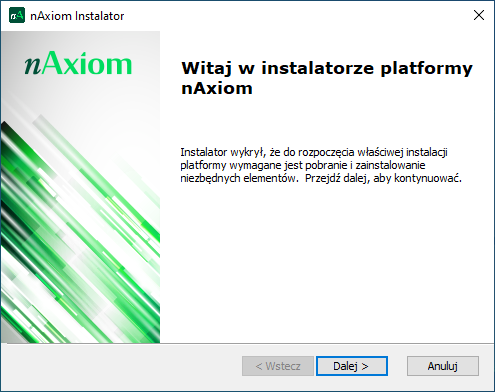
Click Next.
Installing required components
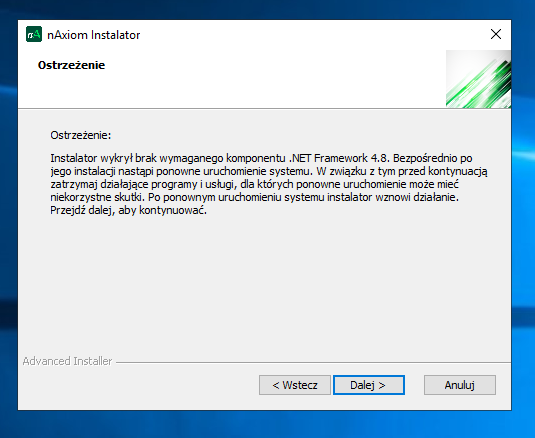
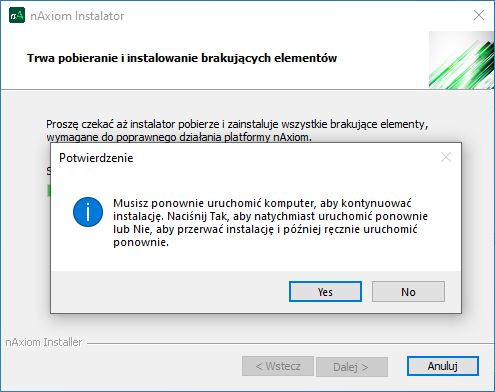
Installation of the .NET Framework 4.8 component ends with a system restart that is performed without warning. To avoid undesirable effects, running programs and services should be stopped in advance. If this component is missing, the installer will display an appropriate message before starting installation of the required components.
In the next step, the installer displays a list of components required for nAxiom to operate. For some components, it is possible to overwrite an existing installation; to do so, select the checkbox next to the component.
For the MS SQL Server, the checkbox can be cleared if the user intends to use, for example, a remote installation. If SQL Server installation is disabled, only the advanced installation mode will be available, because database connection settings will have to be provided.
The installer does not install SQL Server Management Studio, which may be required for managing the SQL Server database. The user must install this program manually; see #ssms.
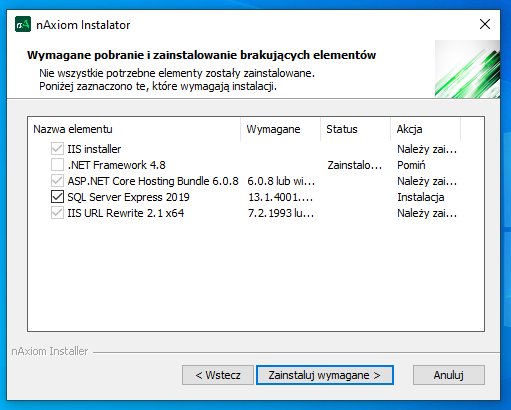
Click Install required components. The installer will begin downloading and installing the required components.
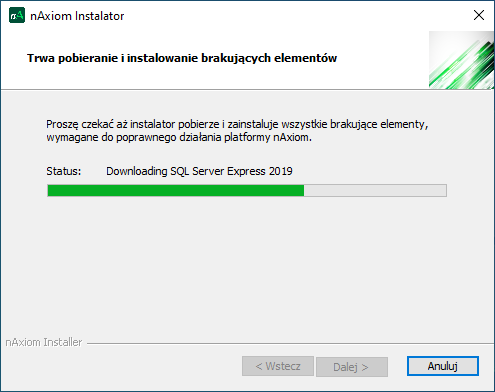
After installation of Internet Information Services (IIS), a system restart is required.
Advanced installation
In this mode, the user is switched to the advanced installer, where individual installation steps can be configured depending on requirements and selected options (steps marked with an asterisk).
The advanced installer is also available as a separate installation package. When using this package, the installer executable (AppInstaller.exe) must be run with administrator privileges. Otherwise, the installation will fail.
After launching the installer, a Windows security warning may be displayed. Click More info, and then Run anyway.
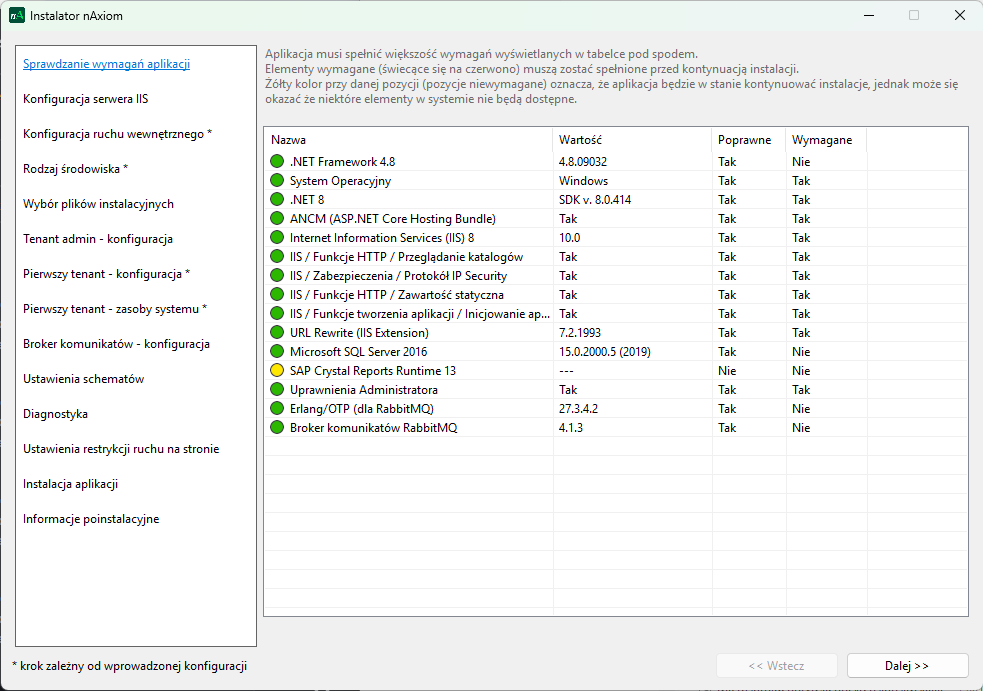
In the first window, the list of detected components is displayed again. All required components must be installed/configured and marked in green. If any components are marked in red, continuing the installation will not be possible.
Components marked in yellow are optional; their absence does not prevent continuing the installation, but some system functionality may be unavailable.
SQL Server is an optional component, as it does not have to be installed on the local machine. The user may specify a remote database server later in the installation process. The same applies to the RabbitMQ message broker.
If all required components are available, click Next.
Configuration using environment variables
Some configuration parameters defined during installation can be provided as environment variables with special names. The table below lists these variables and the corresponding installer settings.
| Environment variable | Installer setting |
|---|---|
| NAX_AppConfiguration__SchemaSettings__DefaultAuthSchema | Schemas settings > Schema for authorization tables |
| NAX_AppConfiguration__SchemaSettings__DefaultCoreSchema | Schemas settings > Schema for system tables |
| NAX_AppConfiguration__SchemaSettings__DefaultUserSchemas | Schemas settings > Schema for business tables |
| NAX_AppConfiguration__MessageBrokerConfiguration__UserName | Message broker - configuration > User |
| NAX_AppConfiguration__MessageBrokerConfiguration__Password | Message broker - configuration > Password |
| NAX_AppConfiguration__MessageBrokerConfiguration__HostName | Message broker - configuration > RabbitMQ AMQP URI |
| NAX_AppConfiguration__MessageBrokerConfiguration__VirtualHostName | Message broker - configuration > Virtual host name |
| NAX_AppConfiguration__MessageBrokerConfiguration__ManagementConsolePort | Message broker - configuration > Management web console port |
If the installer detects any of the above variables, it reads the value and locks the corresponding field in the interface with the message read from environment variable.
IIS server configuration
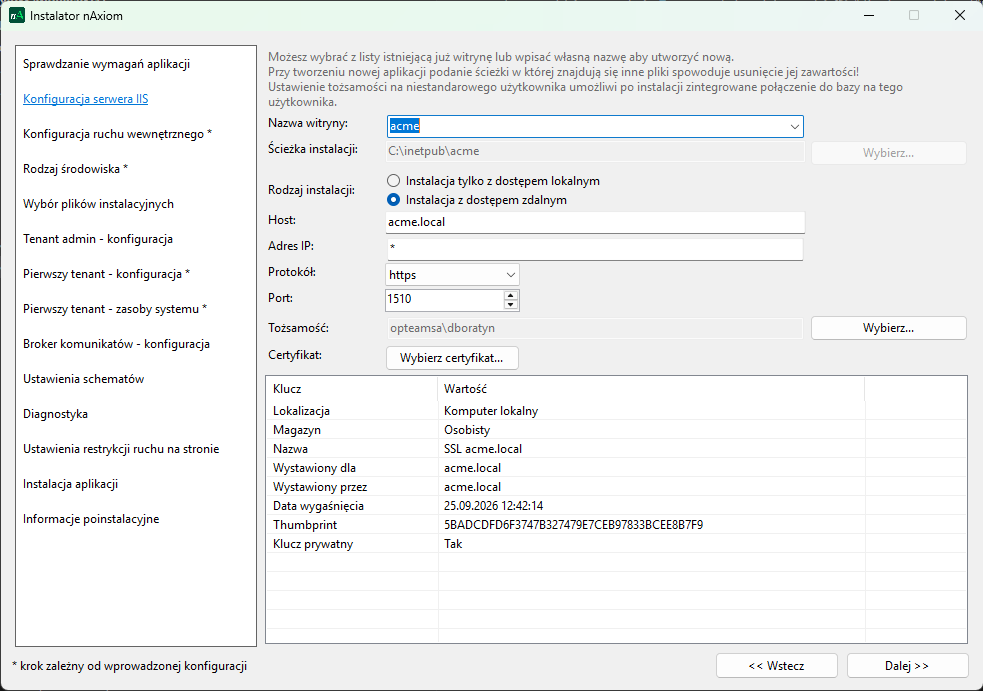
In this window, several fields must be completed to configure the IIS server.
- Site name: the site name (default: naxiom); the site name will be displayed in the IIS Manager site list.
- Installation path: click Browse and select the folder where the site files will be installed; by default, IIS-hosted sites and web applications are located in C:\inetpub.
-
Installation type:
- Local access only installation (default): the nAxiom site is installed on the local computer.
- Remote access installation: the nAxiom site is installed on a server and will be accessible to external users. Selecting this option requires configuring an IIS site binding for internal traffic between site components in the next installer step. This option is also required to set a host name other than localhost on a local computer (according to the hosts file); see also #certificate.
- Host: the host name under which the nAxiom platform will be available; the default value localhost corresponds to a local installation.
- IP address: the IP address of the computer where the nAxiom site is installed; for local installation, * (asterisk).
- Protocol: https; this is the only supported protocol.
- Port: the port number used for server connections; the default value is 443; each site installed on the same host must use a unique port number.
-
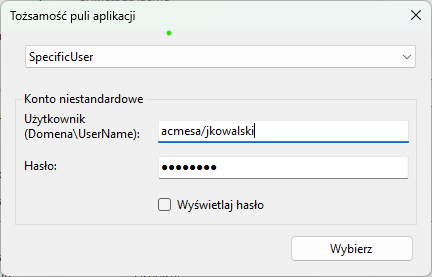
Identity: specifies the privilege level under which individual nAxiom services (admin, api, auth, etc.) are run; available values:
- ApplicationPoolIdentity (default): a virtual Windows account created by IIS when a new application pool is created; this account has the lowest privileges.
- SpecificUser: a specific Windows user account; requires a login name and password.
- LocalSystem: a trusted high-privilege account that also has access to network resources.
Click Select, choose the appropriate option from the drop-down list, fill in the User and Password fields if required, and click Select again.
The application pool identity credentials can be used to log in to SQL Server. To do so, select Integrated Security in steps #ta-config and #ft-config.
-
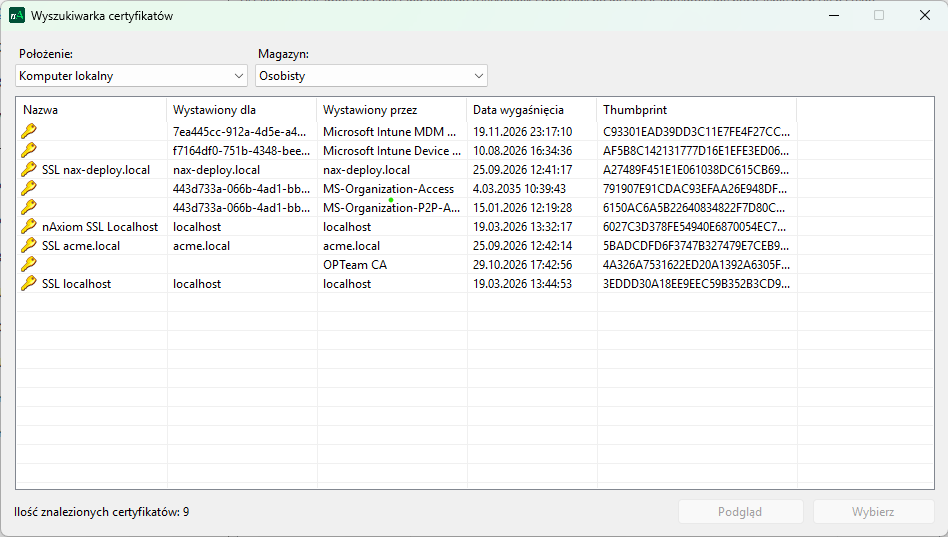
Certificate: click Select certificate to open the certificate picker.
Certificate selection
Only certificates with a private key are displayed in the certificate stores. Select the certificate created for the host name specified in the Host field (Location: Local Computer, Store: Personal) and click Select; see also #certificate.
It is recommended to select certificates only from the Personal or Web Hosting stores.
Click Next.
Internal traffic configuration
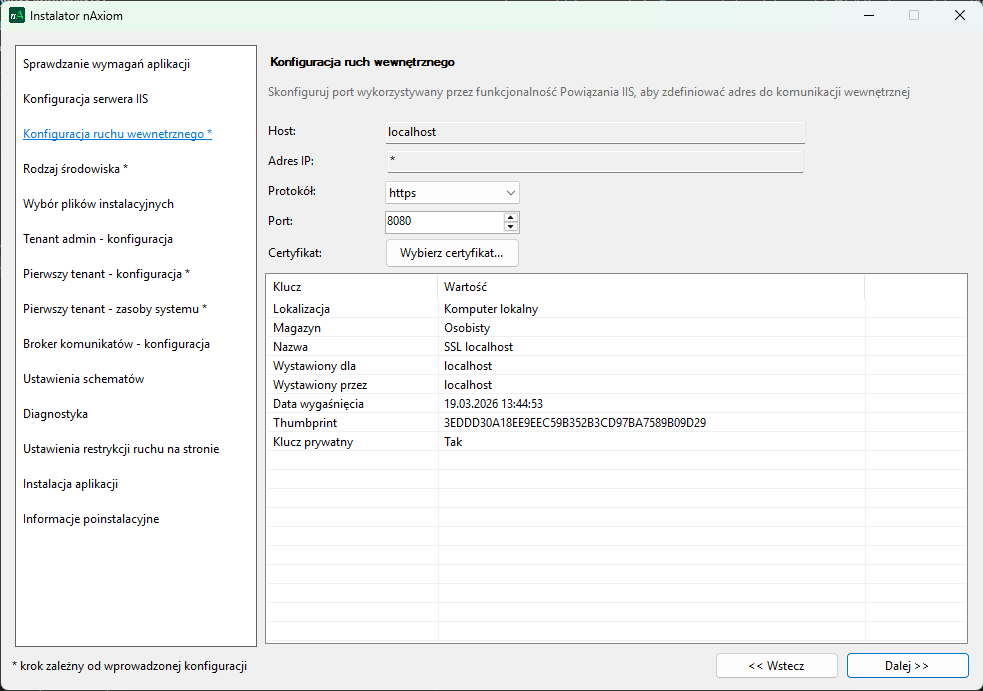
This configuration step is displayed only if Remote access installation was selected in the previous step. Here, internal traffic between nAxiom components is configured.
This traffic uses the localhost host. The user can configure the protocol used for this traffic (default: http), the port (default: 8080), and select a certificate for localhost if the https protocol is chosen. See also #cert-localhost.
If multiple externally accessible sites are installed on the same host, each must be configured with a different internal traffic port. Using the same value (for example, the default) will allow only one of the sites to run.
Before configuring the internal traffic port, verify that it is not already used by other software.
Environment type selection
Selecting this option is possible only during the first installation of the site; therefore, this step is marked with an asterisk as configuration‑dependent. By default, the Development option is selected. This option is also applied to sites upgraded from nAxiom versions earlier than 1.8. The remaining options are Test and Production.
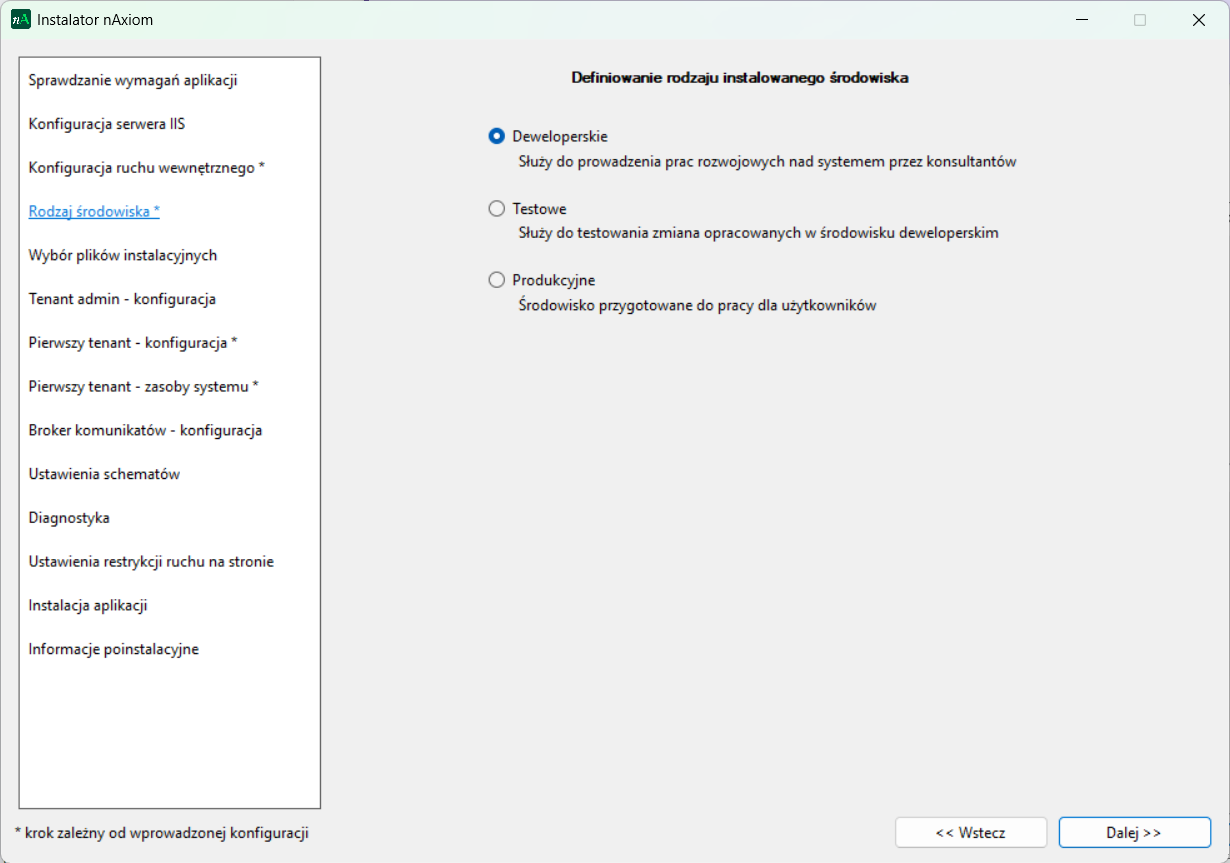
The settings related to the selected environment type are stored in the appsettings.json files for the following services:
api, auth, taskservice, tenantsapi, publicapi, mobileapi, bpmnapi, and executorapi,
under the Environment key{:#np-10772}.
Supported values are:
_Development__Test__Production_
By changing this value in the configuration files, the environment setting for the site can be updated. Applying this change requires restarting the site (via IIS Manager).
For nAxiom deployments based on Docker images, this change can be made using the appsettings-custom.json files (see the article: Wdrożenie nAxiom z obrazów Docker).
Example configuration:
"AppConfiguration": {
"Environment": "Test"
}
In development and test environments, the site is marked with a colored bar at the top of the browser window displaying the environment name (both front office and back office).
The production environment has no visual indicators.
Installation package selection
In this step, it is possible to select non-default paths to installation packages for various platform components (services), provided that the user has the required packages packed as zip archives. Individual platform components can also be enabled or disabled.
For example, the MobileTools component is optional and disabled by default. The OcrApi and Ocr components are also disabled by default, as they are licensed separately and require additional system components to be installed. The Word and Outlook components are add-ins for Microsoft Word and Microsoft Outlook, enabling connections to the nAxiom site from documents opened in those applications.
OCR processing is based on the OCR process queue. By default, checking this queue by the taskservice application is disabled. To enable it, set the value of OCR process queue check frequency (seconds) (AdminSPA > System settings > OCR) to a value greater than 0. Recommended values are 60 or 120 seconds.
For a standard installation, keep the default settings.
Selecting Do not update applications, only change configuration allows skipping file copying to the target folder when the installer is run solely to change configuration settings. When installing a new site, this option is disabled, as shown in the illustration below.
The Change button above the table is used to modify the path to the directory containing installation packages for individual components.
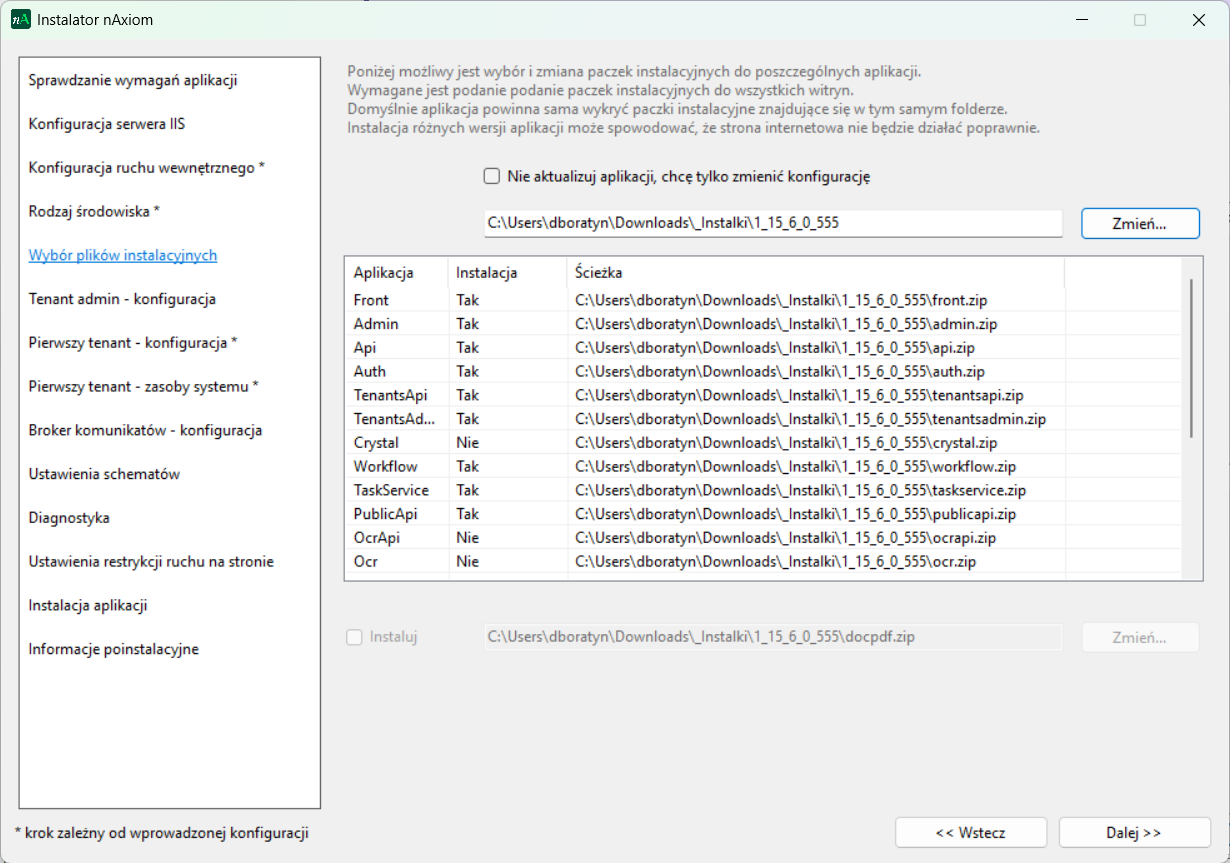
To enable installation of a component, select it in the table and check Install below the table.
To change the path to a component installation package, select it in the table and click Change below the table.
Click Next.
Tenant admin — configuration
In this step, the database connection for the tenant administrator is configured.
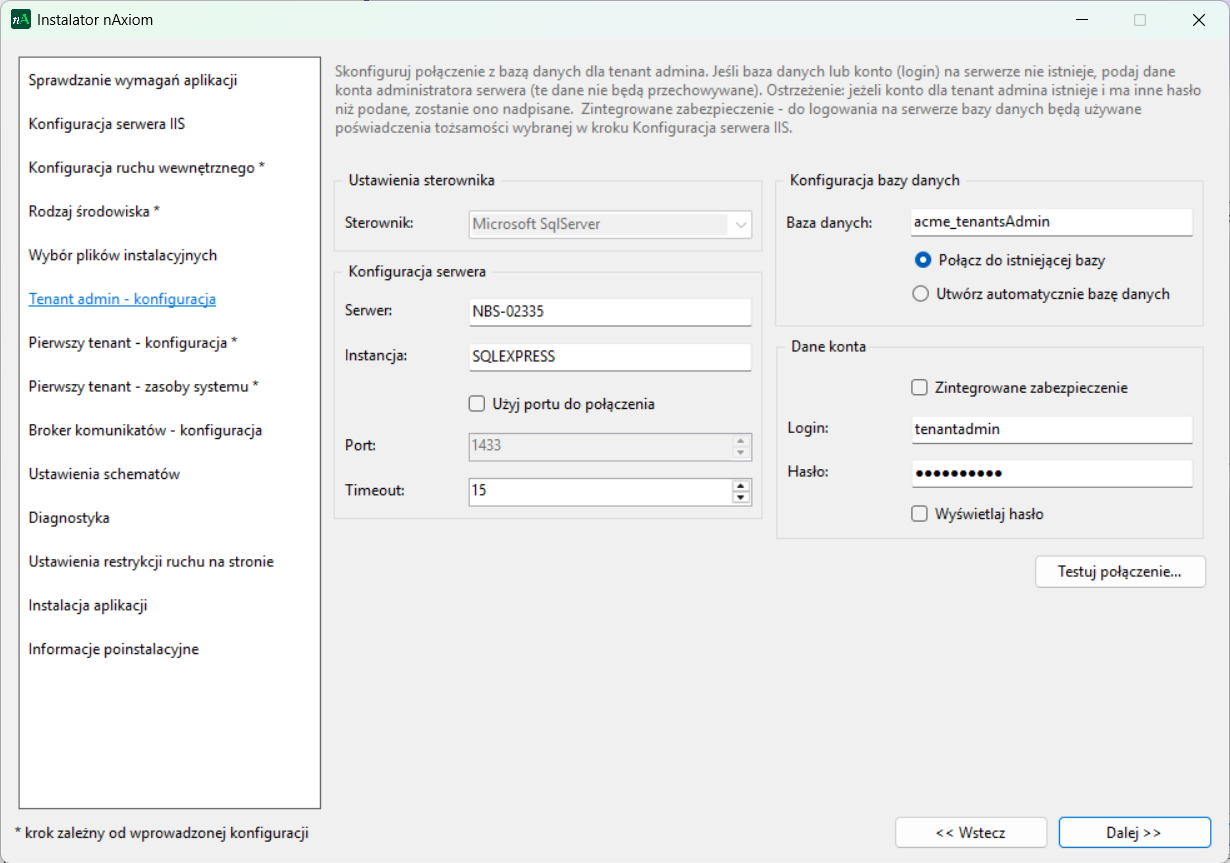
Perform the following steps:
- Fill in the Server and Instance fields using values from SQL Server Management Studio (you can specify a port number instead of an instance).
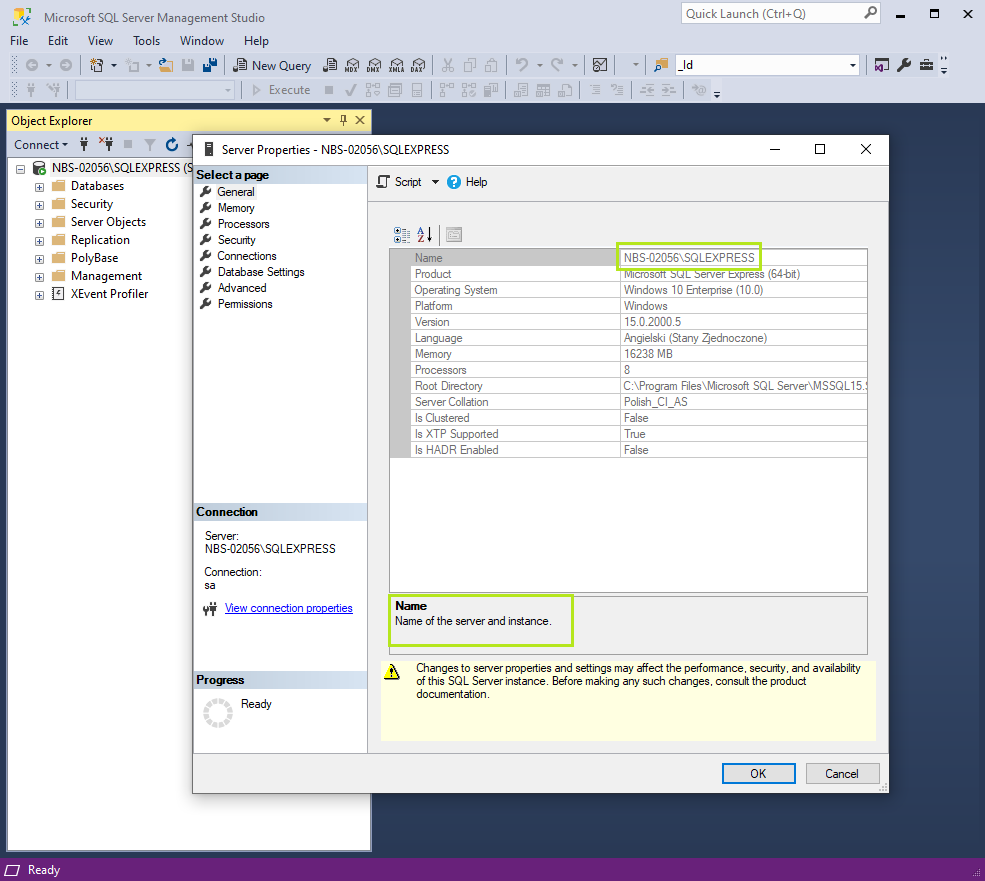
SQL Server name and instance in SSMS - In the Server administrator account details section, fill in the Login and Password fields. These must be credentials of a login with dbcreator and securityadmin roles (or sysadmin). These credentials are required only if the installer must create the database and tenant admin login. If both already exist, these credentials are not required. See also #db-create.
Remember to enable SQL Server and Windows Authentication Mode on the SQL Server instance in use; see #authenticate in this guide. - Enter a value in the Database field and select Create database automatically. To connect to an existing database, enter its name and select Connect to existing database. The default database name is siteName_tenantsAdmin, where siteName is the site name specified in the IIS configuration step.
- In the User and Password fields, enter the database server login credentials. The default values are tenantadmin and Pswrd@[ta]. If the specified login already exists and has a different password, it will be overwritten. Alternatively, select Integrated Security; in this case, the user and password fields become unavailable, and nAxiom will use the IIS application pool identity credentials.
- If connecting to an existing database, click Test connection to verify connectivity.
Click Next. A message confirming successful creation of the tenant administrator database will be displayed.
Message broker — configuration
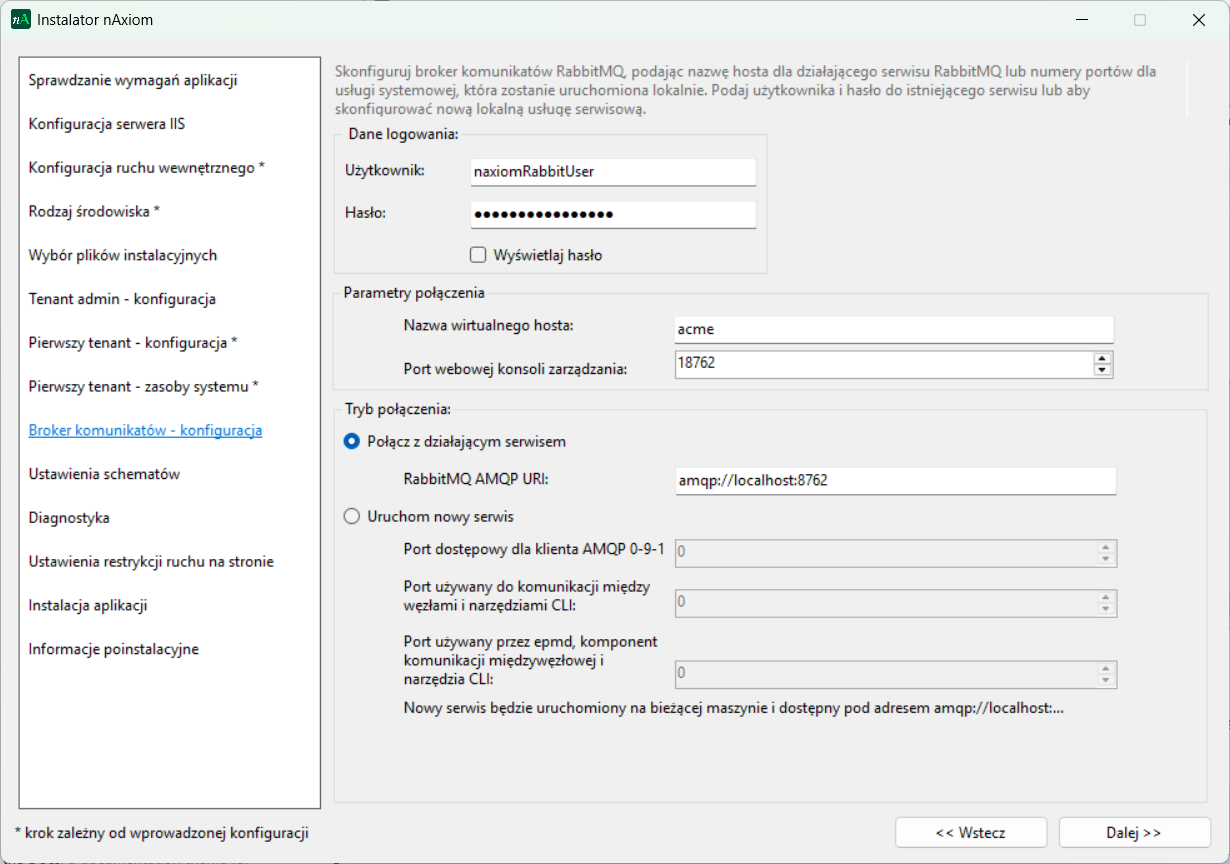
In this step, configure the connection to the RabbitMQ message broker by specifying the following settings:
- User: RabbitMQ login name
- Password: RabbitMQ login password
- Virtual host name: a virtual host is a logical isolation space within the broker. This functionality allows multiple applications to use a single broker. By default, the installer proposes a name corresponding to the site name from step 1 of the installer.
- Management web console port: the port of the RabbitMQ management console. For the default RabbitMQ port 5762, the management console port is 15762. When creating a new RabbitMQ service, the installer proposes a console port greater by 10000 than the broker port.
-
Connect to running service: the installed nAxiom environment will use a RabbitMQ server instance whose address is provided in the:
- RabbitMQ AMQP URI field; this option can be used for a remote RabbitMQ server, a locally containerized server, or when upgrading an existing nAxiom site to version 1.15 or later. For new installations or upgrades to version 1.15, creating a new service is recommended.
-
Start new service: starts a new RabbitMQ server instance as a Windows service; available only for a local RabbitMQ installation. Configuration parameters:
- Client access port: the port on which the RabbitMQ server will be available; the specified port must be free and must differ from the default RabbitMQ port 5672 (which is occupied by the instance created during RabbitMQ installation). In the created server instance, the installer will create a RabbitMQ user account according to the User and Password fields and enable the management console on the specified port.
- Port used for communication: RabbitMQ node port (distribution port); for the default RabbitMQ port 5672, this is typically 25672. Each RabbitMQ server instance must have a unique node port.
- Port used by epmd: the Erlang port mapper daemon port responsible for maintaining the mapping of node names and Erlang process ports; default value is 4369; this port is shared by all RabbitMQ instances on the system.
The message broker connection configuration is saved in the InternalAPI service appsettings.json file:
"MessageBrokerConfiguration": {
  "HostName": "amqp://<host name>:8762",
  "VirtualHostName": "robocza-1-4-4",
  "UserName": "naxiomRabbitUser",
  "UseSsl": false,
  "ManagementConsolePort": 18762,
  "DefaultManagementConsoleUrl": "http://<host name>:18762"
}
Schema settings
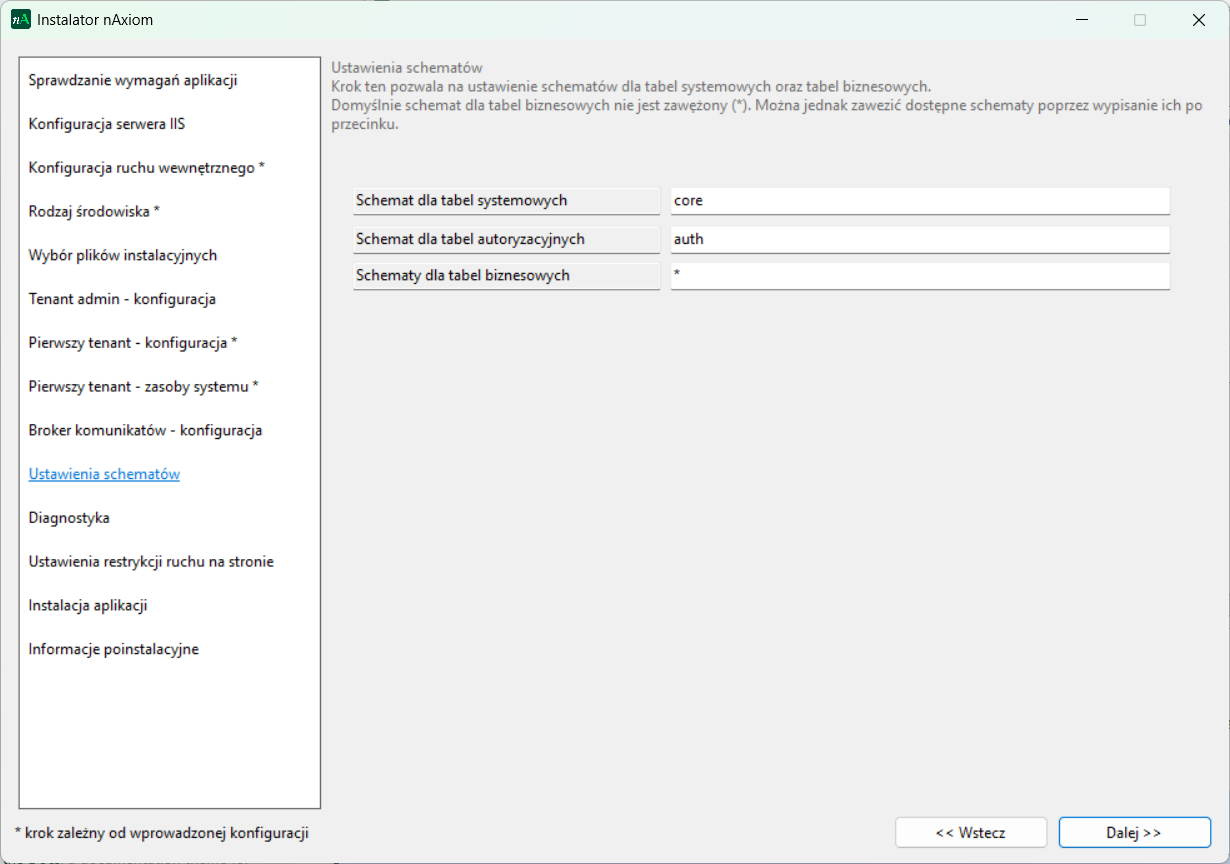
In this step, you define schema names used for system and business tables.
-
System tables schema
- Default value:
_core_
- Default value:
-
Business (user) tables schemas
- During business table creation, the schema is selected from a predefined list
- This list is built from the schemas defined here
Enter schema names separated by commas, for example:
eod, hr, prod
Click Next to continue.
To avoid potential migration issues between nAxiom environments, it is recommended to keep the default schema configuration.
The default schema for business (user) tables is_dbo_.
Diagnostics
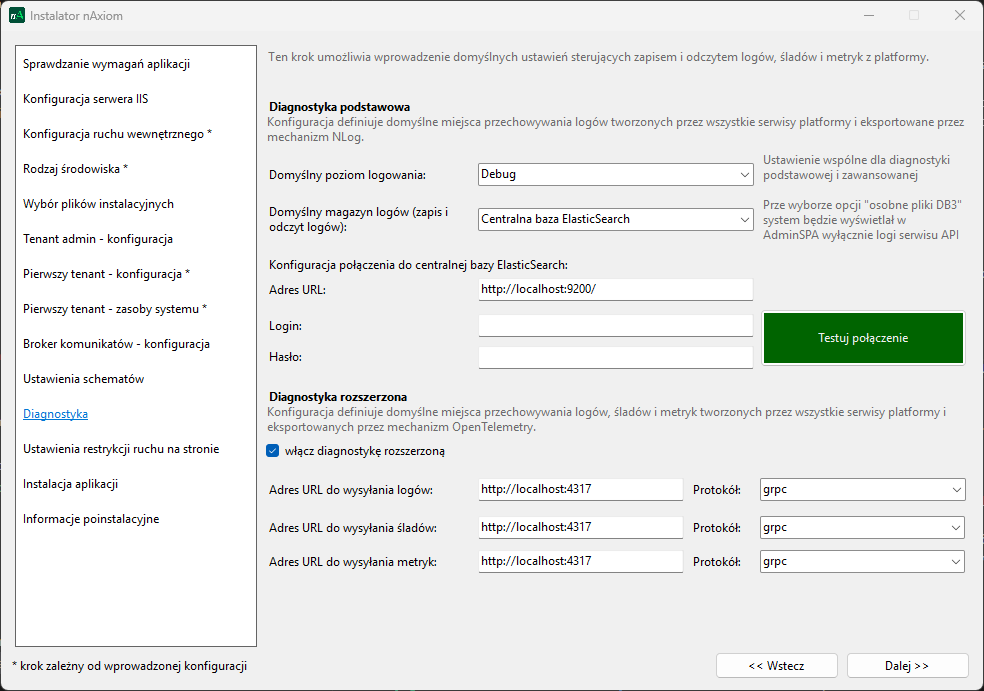
In this step, you configure how diagnostic data is collected and stored by nAxiom services.
The settings apply to the following .NET services:
-
api(internal API) authdocapipublicapireportsapisyncfusiontaskservicetenantsapi
Basic diagnostics
-
Default log level
- Determines the severity level of logged information
- Default value:
_Debug_ - Depending on the selected log store, the value is written to
appsettings.jsonas:-
DefaultDb3LogLevelor DefaultElasticLogLevel
-
- The unused option is automatically set to
_Off_
-
Default log store
- Specifies where logs are stored and from where they are read for display in Admin SPA
- Available options:
-
Central ElasticSearch database
- Logs from all services are stored in a central ElasticSearch instance
- Requires a separate ElasticSearch installation
- Additional parameters:
- URL – ElasticSearch endpoint address
- Login
- Password
- If ElasticSearch security is disabled (
xpack.security.enabled = false), credentials are not required
-
Separate DB3 files
- Logs are written to
log.db3files in individual service directories - In Admin SPA, only logs from the
apiservice are displayed
- Logs are written to
-
Central ElasticSearch database
Extended diagnostics
In this section, you can configure endpoints used to send telemetry data:
- logs
- traces
- metrics
For each telemetry type, define:
-
Target endpoint URL
Example:http://localhost:4317
-
Protocol
-
grpc(default port:4317) -
http/protobuf(default port:4318)
-
Aspire Dashboard
Telemetry data can be viewed using Aspire Dashboard.
Example command to run the dashboard:
docker run --rm -it -d \
  --name aspire-dashboard \
  -p 18888:18888 \
  -p 4317:18889 \
  -e DOTNET_DASHBOARD_UNSECURED_ALLOW_ANONYMOUS=true \
  mcr.microsoft.com/dotnet/aspire-dashboard:latest
The dashboard is available at:
http://localhost:18888
Aspire Dashboard is intended for advanced diagnostics in development and test environments.
It does not provide data persistence and does not send notifications.
More information:
https://learn.microsoft.com/en-us/dotnet/aspire/fundamentals/dashboard/standalone
Traffic restriction settings
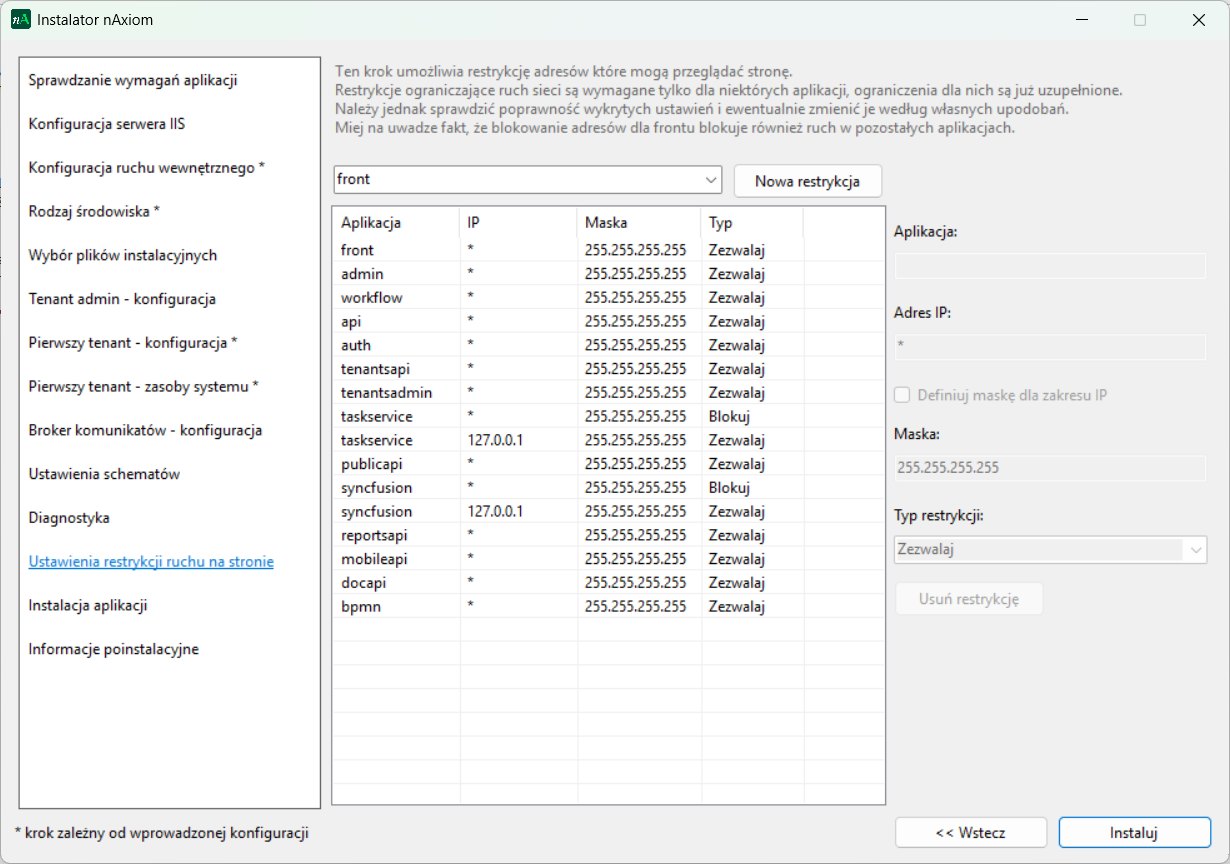
In this step, you can restrict IP addresses that are allowed to access individual components (applications) of the nAxiom platform.
For each restriction, perform the following actions:
- Select a platform component (application)
- Enter an IP address
- Optionally provide a subnet mask
- Select the restriction type:
- Allow – explicitly permits access
- Block – explicitly denies access
Defined restrictions can be removed using the Remove restriction button.
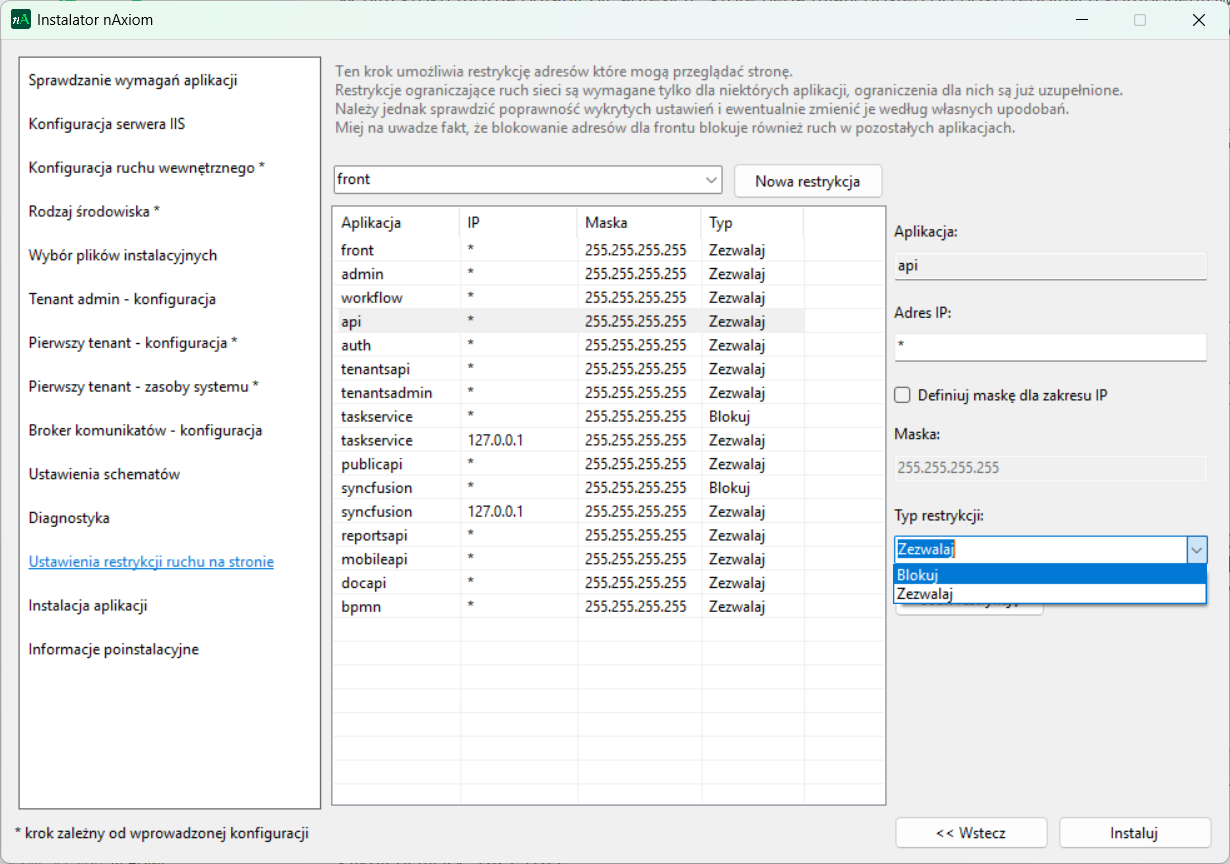
For local installations, this step can be skipped.
Click Install to proceed.
Traffic restriction settings
In this step, you can restrict IP addresses that are allowed to access individual components (applications) of the nAxiom platform.
For each restriction, perform the following actions:
- Select a platform component (application)
- Enter an IP address
- Optionally provide a subnet mask
- Select the restriction type:
- Allow – explicitly permits access
- Block – explicitly denies access
Defined restrictions can be removed using the Remove restriction button.
For local installations, this step can be skipped.
Click Install to proceed.
Post-installation information
In this step, the installer displays the URLs of individual nAxiom platform components.
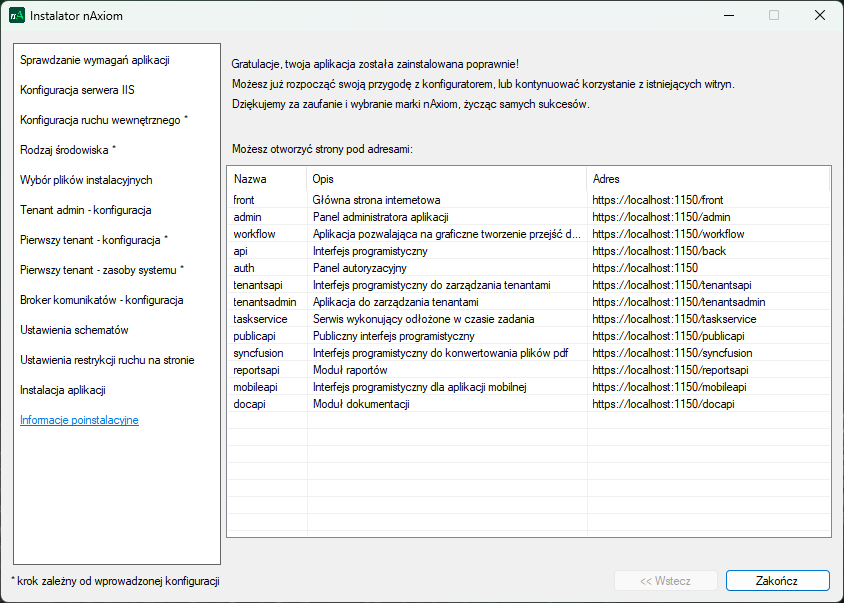
Click Finish to exit the installer and return to the main installation window.
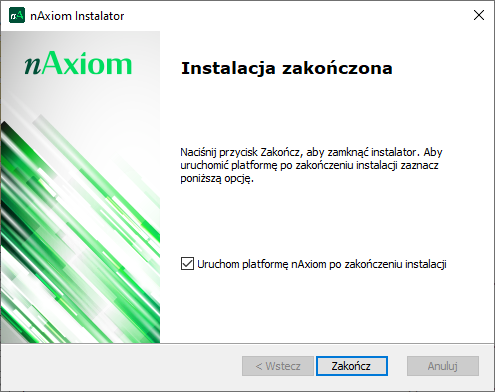
The Run platform after installation option applies only to a site installed on the default port
_443_.
If the site was installed on a different port, after the browser opens you must manually append the correct port number in the address bar, for example:
https://localhost:1933
For a site installed using Advanced installation, you may place the license file before the first startup in the following directory:
siteInstallationFolder\api\InstallationConfiguration
If the license file is not placed there, it must be imported after logging in to the site using a consultant account; see #license.